 Whale Folder
A practical way to organize Mac downloads and images with Whale Folder
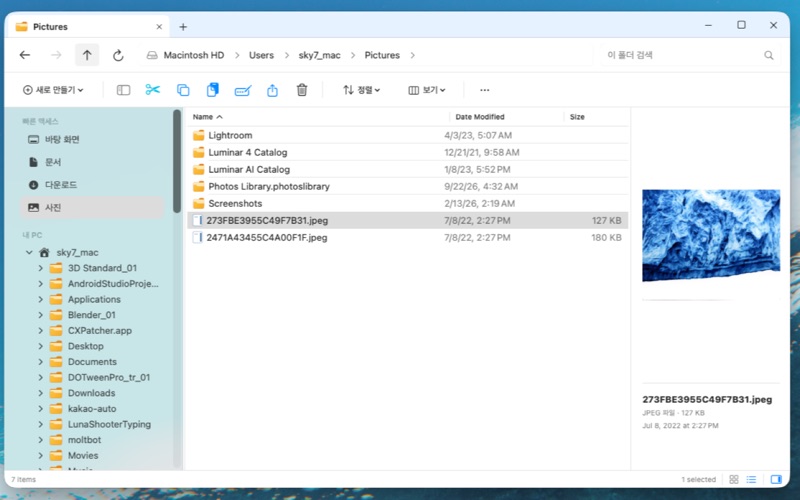
A folder full of worksheets, reference images and project exports is easy to create—and harder to keep useful. Whale Folder gives Mac users a tabbed workspace for looking through those files and putting them where they belong.
We make Whale Folder at Luna Whale. This is our product guide, written to help you decide whether its workflow fits yours. It is a local file manager for macOS 14 or later, available through the Mac App Store.
Keep the folders for one task together
Start with a small job: sorting the resources for next week’s class, collecting design references or clearing a project’s download folder. Open the source folder and the destination folder in separate tabs. You can return to each location without repeatedly navigating back through its parent folders.
For example, keep Downloads in one tab and a folder named “October art class” in another. Review the materials in Downloads, then copy the ones you need into your class folder. If you are still deciding what to keep, work with copies first.
Choose a view that suits the files
Large icons and image previews are useful when filenames are similar but the pictures are different. Use the detailed list when the decision depends on a filename, modification date or file size. Sorting by date can bring recent exports together; sorting by size can help you inspect large files before deciding what to archive.
Whale Folder does not decide which files are duplicates or safe to delete. You remain in control of that choice. Preview the content and check the name before moving anything to Trash.
A simple three-step organizing routine
- Choose a folder. Launch the app and select a folder through the macOS folder picker. Approve access if macOS asks. Start with a disposable sample folder while learning the controls.
- Review and group. Browse the thumbnails or list, inspect a file preview, and select related files. Give folders descriptive names such as “References”, “Working files” and “Exports”.
- Put files in place. Use copy, move or rename as appropriate. Create a ZIP archive when you need one packaged set of materials. Verify the result before deleting a source copy.
Your files stay on your Mac
The Mac App Store edition works within folders you authorize. File listings, recent items and folder permissions are processed on your device. Whale Folder has no separate app account, advertising, analytics SDK or built-in cloud sync. A support link opens our website separately.
If an external drive is disconnected or a folder is no longer accessible, reconnect it and select the folder again when needed. The app’s folder permission is separate from the normal permissions macOS applies to your files.
Is it a fit for your work?
Whale Folder is worth considering if you frequently move between project folders, browse image references or prefer a large-icon and detailed-list workflow. Finder remains available for your other Mac tasks. We do not claim that one file manager is faster for every folder or that it replaces every Finder feature.
The app interface supports 39 languages, including Korean, English, European and Indian languages, Thai, Vietnamese and Simplified Chinese. Store availability and pricing can vary by region; check the current App Store listing before purchasing.